Download TotalX Attendance & Payroll
Use it on your phone, your computer, or straight from the browser. Everything stays in sync — it’s the same account wherever you sign in.
macOS
The admin dashboard as a desktop app. Version 1.0.4, for macOS 11 and later.
Download formacOSInstallation stepsAndroid
For admins and employees — attendance, leave and payslips on the phone.

iPhone & iPad
For admins and employees — attendance, leave and payslips on the phone.

Installing the desktop app
It takes about a minute. Here is every step, including the security prompt macOS shows the first time you open it.
- 1
Download the installer
Use the "Download for Mac" button above. You will get a .dmg file — one file, a few megabytes, saved to your Downloads folder.
Download it with a browser. A .dmg passed along through WhatsApp or Telegram will not open on a Mac — macOS refuses to run files those apps wrote, and the error it shows blames the app instead of saying so.
- 2
Open the .dmg
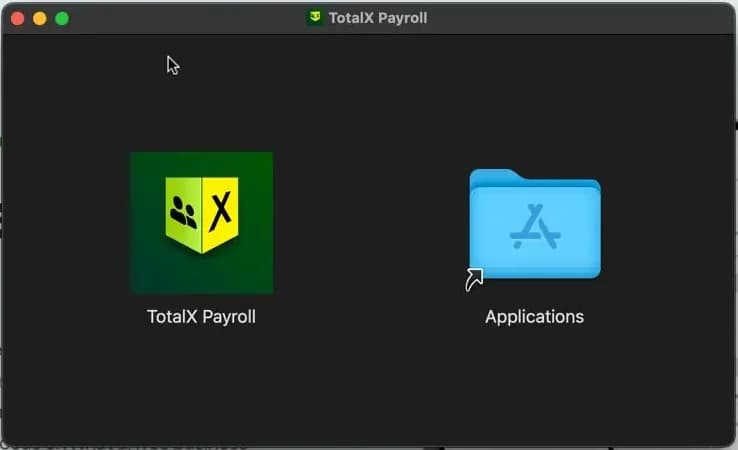
Double-click the downloaded file. A window opens with the TotalX Payroll icon on one side and your Applications folder on the other.
- 3
Drag it into Applications
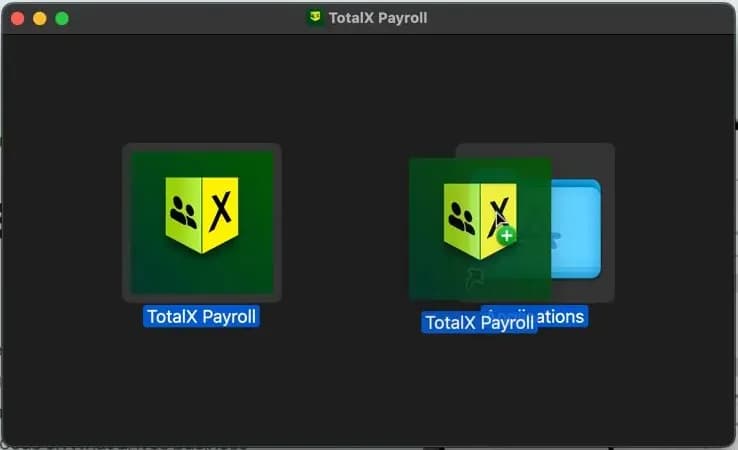
Drag the TotalX Payroll icon onto the Applications folder in that same window. That is the whole installation — wait for the copy to finish, then close the window and eject the installer.
- 4
Open it and allow the first launch
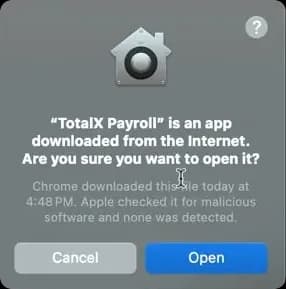
Open TotalX Payroll from Launchpad or your Applications folder. macOS asks once whether you are sure, because the app came from the internet — click "Open".
The same dialog says Apple checked the app for malicious software and found none: it is signed and notarized with Apple. You will not be asked again.
- 5
Sign in
Enter your mobile number, then the OTP we send you, and pick your company. It is the same account you use on the web dashboard.
What you need
- macOS 11 (Big Sur) or later
- Apple silicon or Intel — one download covers both
- An internet connection (the app works against your live data)
Not signed up yet? Get started — your plan decides which of these you can use.